How to use Role-Based Access Controls (RBAC) in OpenCTI

Nate Huber
Senior Customer Success Manager
-
 Copied!
 -
 Copied!
 -
 Copied!
What is RBAC and its use in OpenCTI?
In a nutshell, Role Based Access Controls allow system administrators to assign capabilities to individual users based on their expected or assigned roles within a system. In turn, RBAC supports a more secure platform where multiple groups or users can have access, but with different levels of need-to-know and different capabilities within the platform. As a result, you can rely on one platform for multiple groups without needing to purchase multiple platforms. This is one of the core capabilities of OpenCTI, and another reason for OpenCTI’s flexibility.
OpenCTI, within the Enterprise Edition, offers a built-in RBAC Function allowing Filigran’s customers to use a single instance of OpenCTI for multiple internal or external organizations or units when they want to separate the users based on need-to-know and role capabilities. This capability allows organizations to protect their information while also optimizing the capabilities of internal workflows and intelligence sharing. You may be asking yourself, “How does it do that?” With RBAC you can have multiple groups of users or organizations within a single OpenCTI instance and create intelligence sharing processes among them, all within a single pane of glass.
TL;DR:
- RBAC is a system used to organize users/groups in order to better safeguard corporate information
- Each user of OpenCTI must have a user profile and be assigned to a group and a role
- TLP markings are used in OpenCTI to control information dissemination and are assigned at the group level
- Users are assigned to roles, which determine the capabilities of a user within the platform
- Organizations provide a separate layer of data segmentation
How does RBAC work in OpenCTI?
There are several functions within OpenCTI that make up RBAC, and each maintains their own distinct capabilities. These functions are users, groups, roles, and organizations. For beginners to OpenCTI, these functions can seem complex, but once you get the hang of how Each function works and ties together the RBAC capabilities seamlessly.

What are Users?
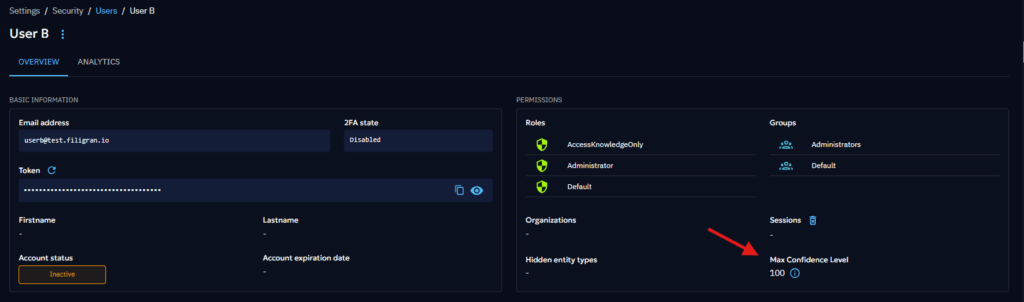
The first function new organizations using OpenCTI should set up in OpenCTI are individual user profiles. Every individual who needs to use OpenCTI must first have a user account. One of the main fields within the user profile is the user confidence level. This confidence level, which ranges from 0 to 100, tells the system the maximum confidence level at which the user is permitted to make edits. All entities within the platform have an overall confidence level. If a user has 100 percent confidence, they can edit any entity they have the capability to view within the platform, as long as they have the correct TLP markings and role capabilities, both of which we will discuss later. If a user has a lower confidence level assigned to them, such as 65 percent, that user can only edit entities that have a confidence level of 65 or lower.
What are Groups?
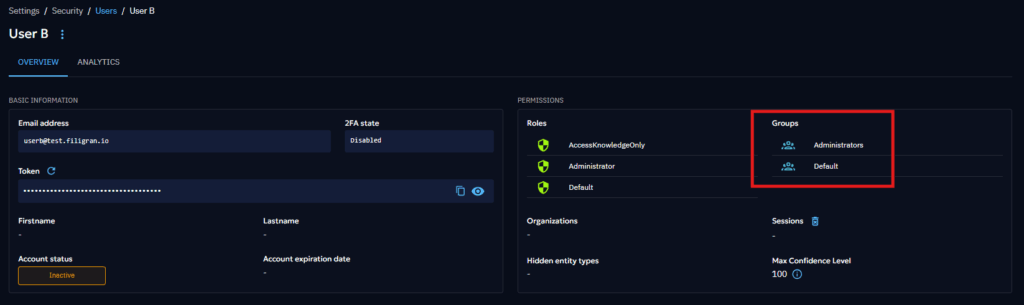
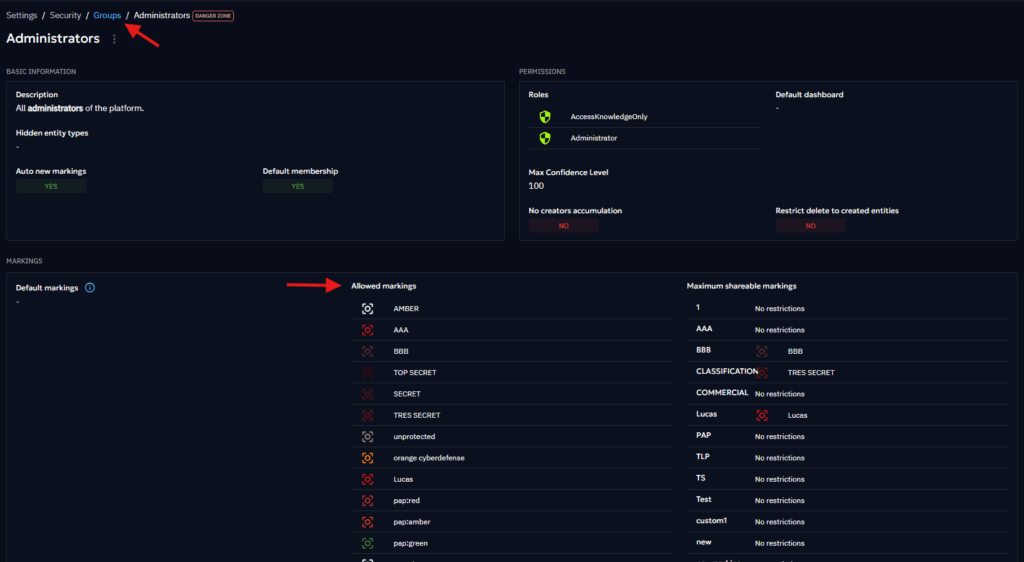
Groups are the next required RBAC function that a new organization needs to assign users to in OpenCTI. The group function is what allows individual users to see information within OpenCTI. The groups are the entities to which TLP markings are assigned, and the users assigned to those groups will be able to see information within OpenCTI based on the TLP markings assigned to their respective groups.
For example, if you are a user and are assigned to a group that has TLP markings assigned up to TLP:RED, you will be able to see all information within OpenCTI up to and including TLP:RED, however, if you are in a group that only has access to TLP:AMBER-STRICT, you will not be able to see any data with a TLP marking most restrictive than TLP:AMBER-STRICT. If a user is assigned to multiple groups, which the platform allows, that user will be able to see all information up to and including the most restrictive marking of all the groups the user belongs to. In other words, if a user is in one group that includes up to TLP:AMBER-STRICT marking and another group with up to TLP:RED marking, that user will be able to see information up to TLP:RED.
What are Roles?
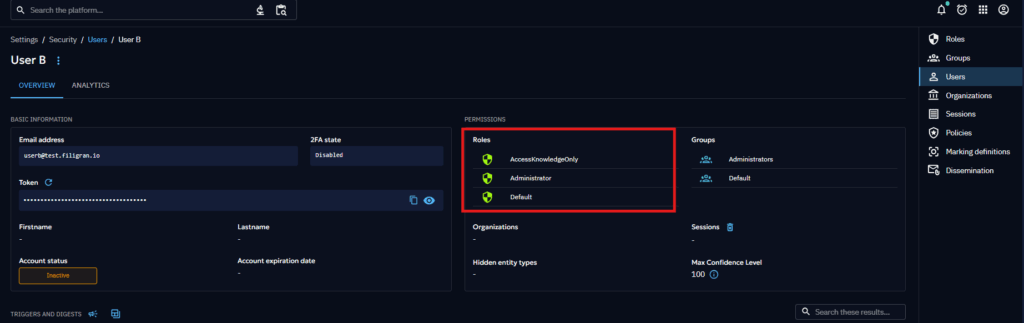
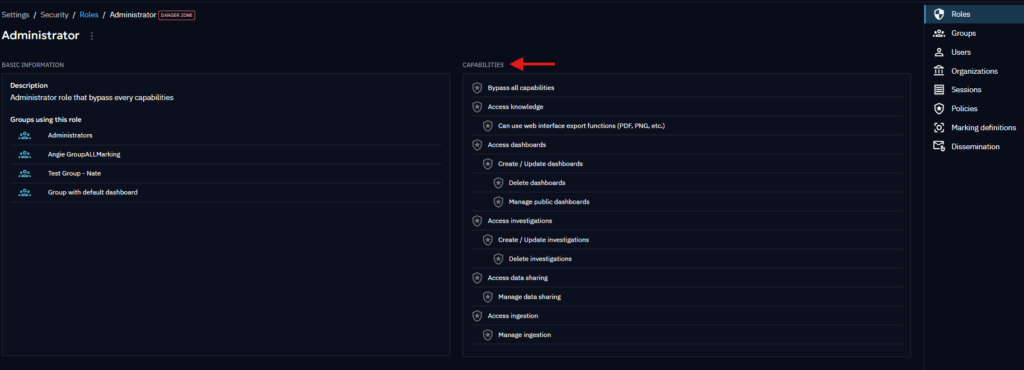
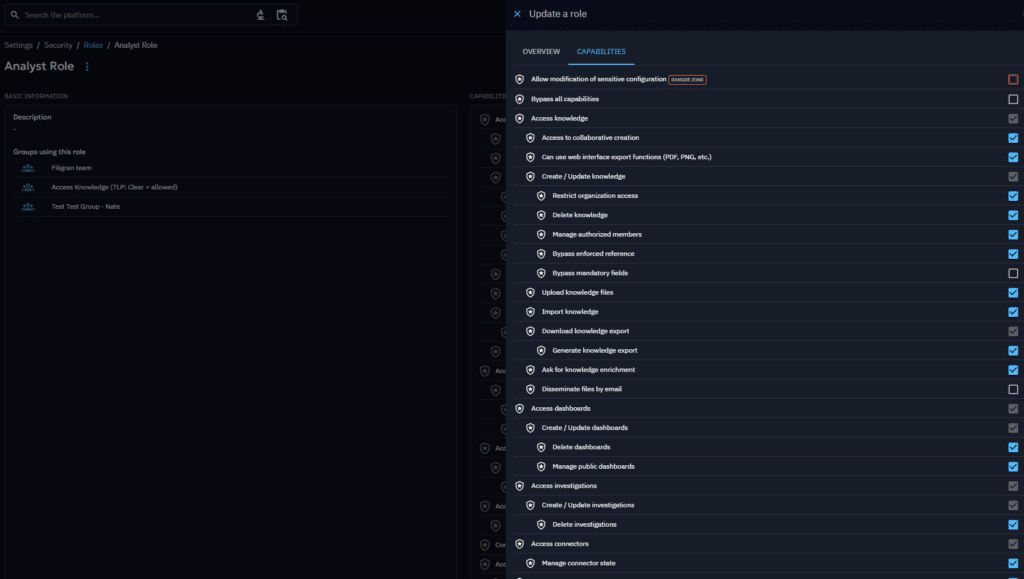
Roles are the final required field for RBAC within OpenCTI. Under roles, users are assigned capabilities in OpenCTI. These capabilities describe what a user can do within the platform. Capabilities range from read-only access to bypass all capabilities or an administrator role. The more capabilities a user has, the more actions they can take within the platform. Administrators should have bypass all capabilities, and certain super admin users should also have the capability to access and modify sensitive configurations, also known as the Danger Zones. You can update the capabilities of a role by going into the role, selecting the blue pen at the bottom of the page, clicking on the capabilities tab, and selecting the pertinent capabilities for that role.
What are Organizations?
Although not a requirement with RBAC, organizations can be extremely useful in structuring data access and sharing within a single or multiple OpenCTI platforms. Customers can use organizations to mirror their internal structure by assigning different units to different organizations within OpenCTI and creating workflows where reporting is shared between the organizations. Organizations are also useful for ISACs, where there is a parent organization with broader access and capabilities within the platform, and child organizations through which the parent organization can share data and intelligence with the child organizations. Organizations don’t control what information users have access to nor user capabilities, as those functions, as described above, fall under groups and roles. As a result, organizations can be made up of users who have different types of access, based on the groups and roles to which they are assigned.
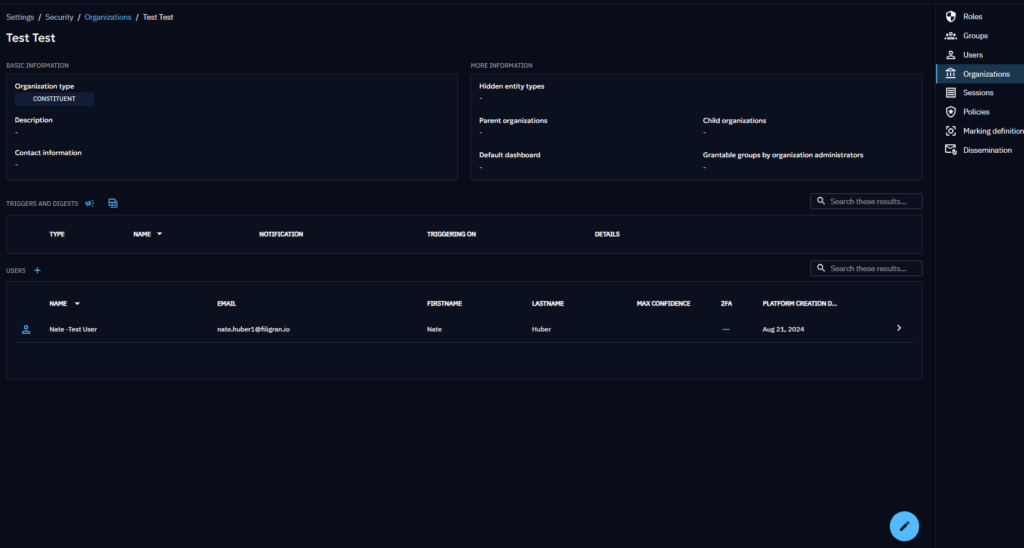
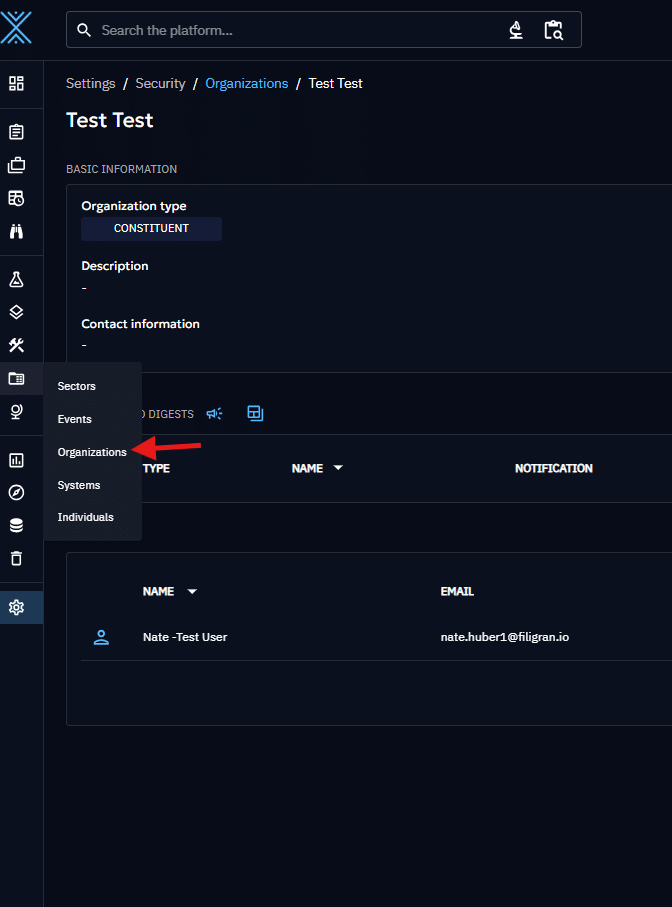
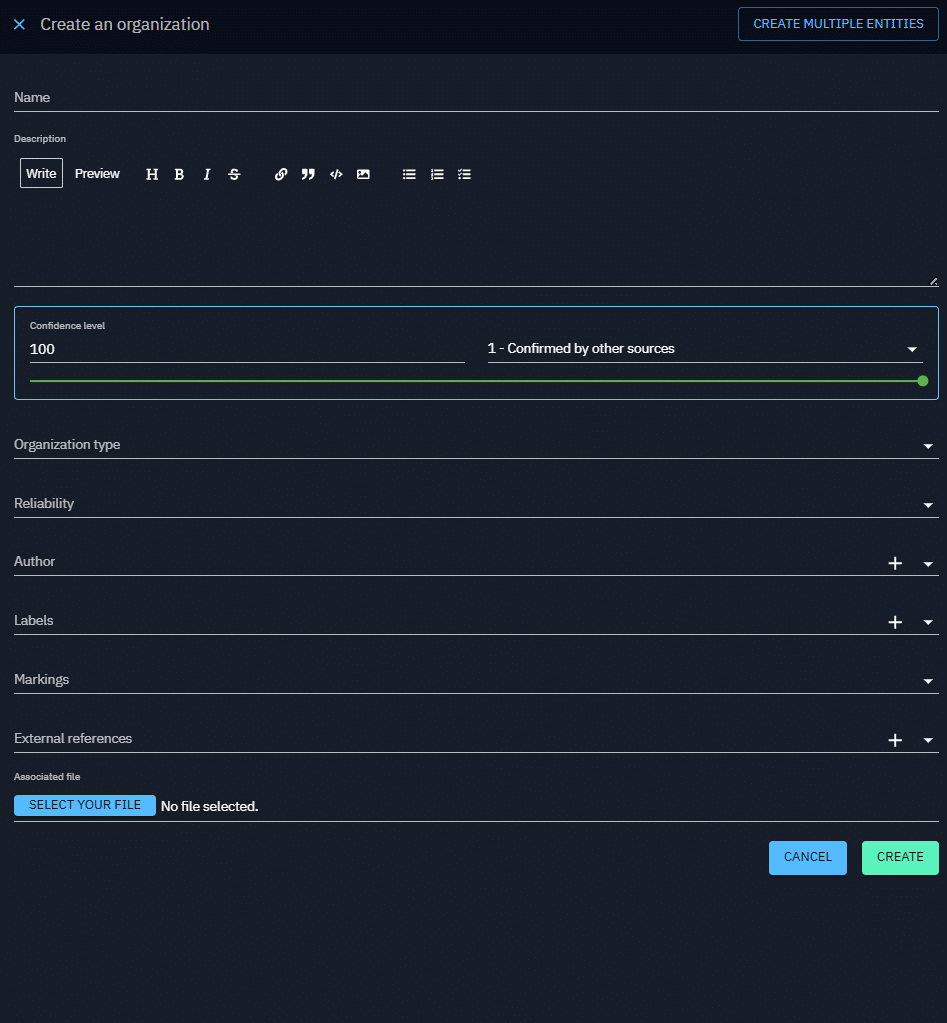
Within OpenCTI, users need to create organizations under the Organization entity found on the left menu. A user cannot create an organization under Security. The reason for this is that an organization within OpenCTI can act both as an entity that a user wants to track as well as an administrative function that includes OpenCTI users and a place where users can share information between organizations. Once that individual organization is created, it will show up under Settings > Security > Organizations.
Conclusion
The RBAC capabilities within OpenCTI allow for an extra layer of security where need-to-know is a necessity. As discussed above, organizations can assign their users to specific groups where TLP markings dictate what level of reporting users can review. Then the capabilities listed under roles dictate what specific actions a user can take within the platform. Lastly, some Organizations will use the organization function within OpenCTI to control data sharing based on company structure or internal data-sharing rules and processes. In the end, RBAC allows organizations to maintain additional control over what information is shared, how it is shared, and with whom it’s shared.
For additional information on RBAC and how it’s used in the platform:
- RBAC Overview Video – Watch now
- Webinar Replay “Need visibility on who does what in your CTI platform?” – Watch now
Enjoy, and feel free to ask any questions about it on our Slack community channel!
Read more
Explore related topics and insights