Introducing Enhanced Access Control for Containers in OpenCTI

Céline Sèbe
Associate Software Engineer

Marie Flores
Associate Software Engineer
-
 Copied!
 -
Copied!
-
Copied!



Data segregation and need-to-know principles are crucial in the cybersecurity realm. This becomes even more important during critical incidents or when collaborating on highly sensitive data with team members who have specific expertise.
This is why we are thrilled to introduce a major improvement to OpenCTI‘s access control capabilities. With our latest release, the authorized members system has been expanded to Containers, giving users more precise control over sensitive information within their threat intelligence platforms.
This feature ensures that even within shared containers, only specifically authorized users, groups, or organizations can access the data, with permissions tailored to their role. Preserving confidentiality while fostering greater collaboration, you can safely share specific cases or reports with external partners without exposing unrelated sensitive information.
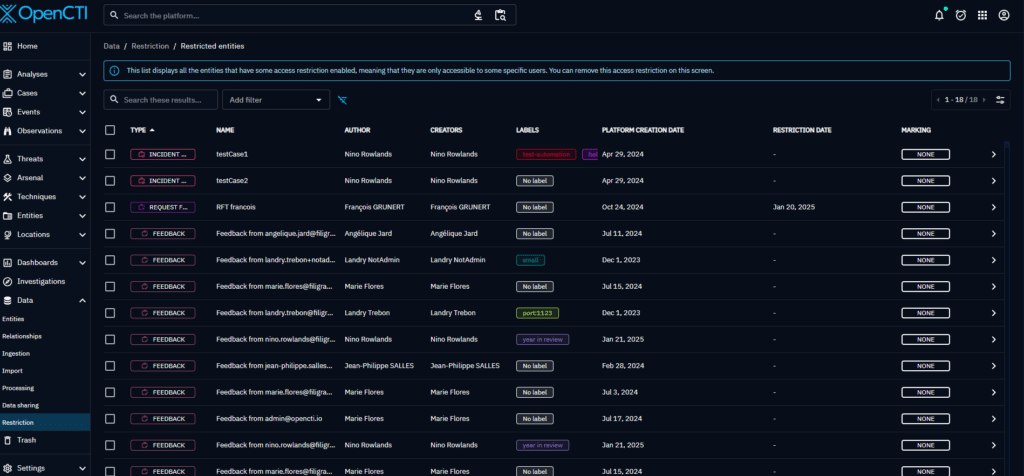
Additionally, to simplify the management of restricted data , administrators now have access to a restriction management panel. This feature allows them to remove entity restrictions whenever needed.
This feature is under Entreprise Edition.
Enabling Restrictions
The authorized members system, previously available for Feedback entities, has been extended to Reports, Groupings, Incident Response, Request For Information and Request For Takedown. Before taking advantage of this new feature, please ensure that you are running the latest version of OpenCTI 🙂.
There are two ways to enable restrictions, based on the various situations you may face.
Situation 1: An Incident Response is raised through a third party & you need to collaborate with some specific users to investigate.
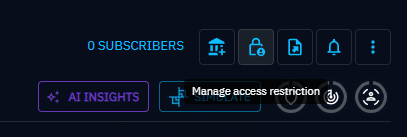
- Navigate to any supported container, for instance an Incident Response, and click on the “Manage Access restrictions” button in the entity header:
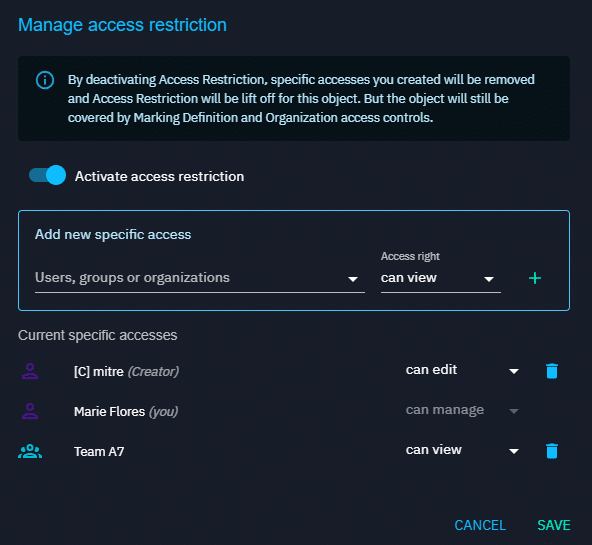
- Define specific users or groups who can access the entity: Choose between 3 levels of access :
- View: Access to view the entityEdit: View + Permission to modify and update the entity.Manage: Edit + Ability to delete the entity and to control user access and rights.
It’s crucial to emphasize that at least one user must retain admin access to ensure ongoing management capabilities for the entity. In this situation, you may decide to grant edit rights only, to ensure you can collaborate with other users while ensuring visibility & access to the container are limited.
Situation 2: You need to create a report manually, following some investigation that you have done, but you want to avoid the report to be visible from the beginning.
Since every event in the platform is logged and sent to the stream, you may have automation that listens to it or automatically shares containers when created. When working on a sensitive report, you might want to keep it hidden from the moment it’s created.
In that case, you have two choices:
- An admin user (with the Manage customization capability) can define default values for the Authorized Members of containers: whenever a container will be created, it will be automatically restricted to the user, group or organization defined in the default values.
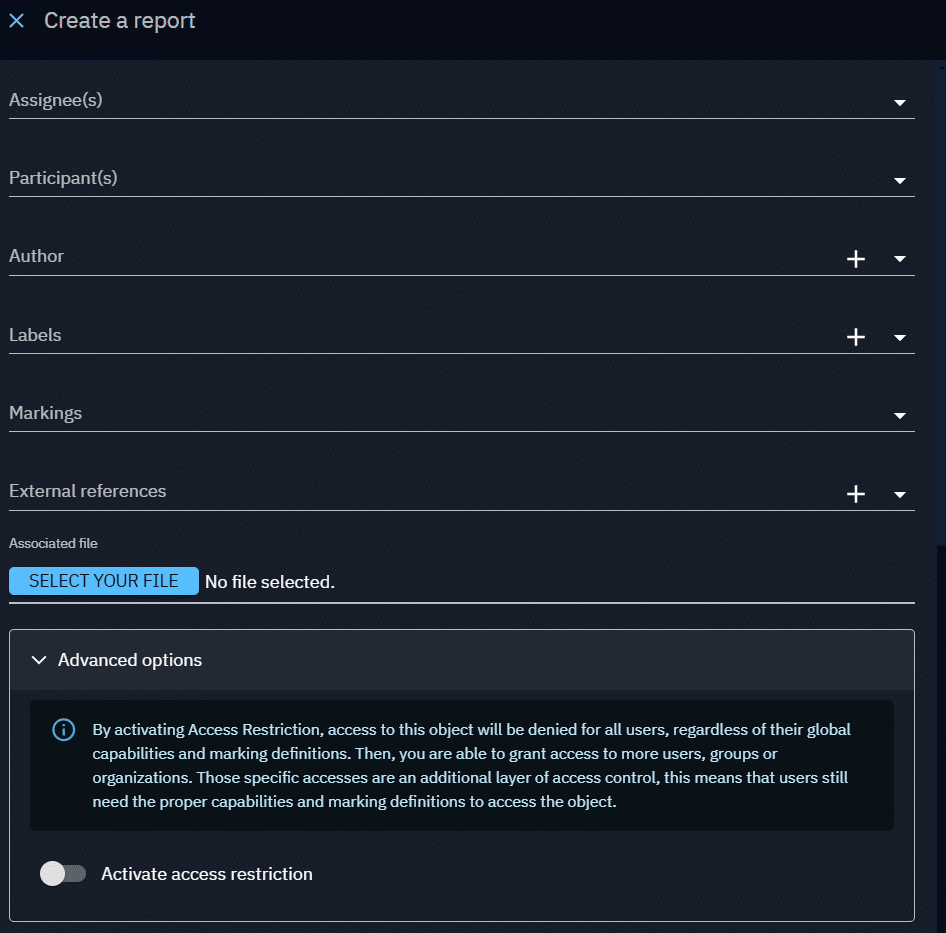
- Otherwise, in the creation form of the container, you can also choose to add some Authorized Members directly, restricting the access to the container from its creation.
Impact on the container
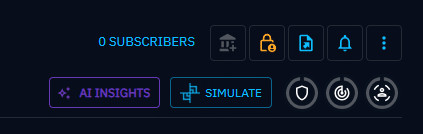
Once authorized members have been defined for our Incident Response or Report, we can observe that “Share with an organization” button is disabled. Data segregation by organization is disabled for that specific entity as soon as authorized members have been defined. Only authorized members will have access to the entity.
Please note that this restriction only applies to the container and does not cascade to the entities contained within the container.
Ensuring that only the right data is restricted
Restricting access to some data in the platform is a great feature for collaboration, but what happens in case the only user that can manage the entity (remove restriction) has left the organization?
To keep restricted data manageable in case an entity manager leaves your organization, administrators (users with Bypass all capabilities) can use a restriction management panel to lift restrictions on entities when necessary.
In this panel, all entities under restrictions are visible. Admins can, either from a bulk operation or individually for each container, remove the restriction to release the container to the whole platform.
Key Benefits
- Data privacy: Ensure that your data remains restricted to prevent any unwanted access.
- Foster collaboration: Provide access to only key users, group or organizations to work on high sensitive issues.
Conclusion
By limiting access to authorized members only, containers come with a flexible access control system, allowing users to tailor visibility and rights according to their collaborative needs. This makes collaboration more secure for organizations. This new feature is available exclusively to users of our Enterprise Edition.
If you have any question, request, comment or feedback to share with us, don’t hesitate to join us on Slack!
Read more
Explore related topics and insights