Discover, Share, and Use High-Quality CTI Feeds with Ease

Ellyn Bouscasse
Senior Product Owner - XTM HUB

Jean-Philippe Kha
Staff Software Engineer

Tiffaine Hervy
Software Engineer
-
 Copied!
 -
Copied!
-
Copied!



In the world of Cyber Threat Intelligence (CTI), accessing the right data—and processing it effectively—is critical. Some CTI CSV Feeds are remarkably complete and valuable, such as Spamhaus and threatview maintained by communities, researchers and public institutions.
At Filigran, we created a consistent and efficient method to structure this kind of data into STIX format, that is what we called the CSV Mappers.
Within OpenCTI, you can already leverage these CTI Feeds via the Data menu (ingestion > CSV) by associating the CTI Feed’s URL to an appropriate CSV mapper. But let’s be honest: everyone has been doing it their own way, manually and often from scratch. So, we asked ourselves : why not make this simpler and more efficient!
TL:DR:
- Easy Import/export CSV feeds from OpenCTI
- Library of CSV feeds & their corresponding CSV mappers available to download via XTM Hub
- No need to pre-provision user when creating a CSV feed anymore, you can automatically create them on the fly
- These three powerful features make generating high-quality CSV feeds faster, easier, and smarter than ever.
Introducing CSV Feed Import & Export in OpenCTI
Share the best CSV feed with the new import/export feature in OpenCTI
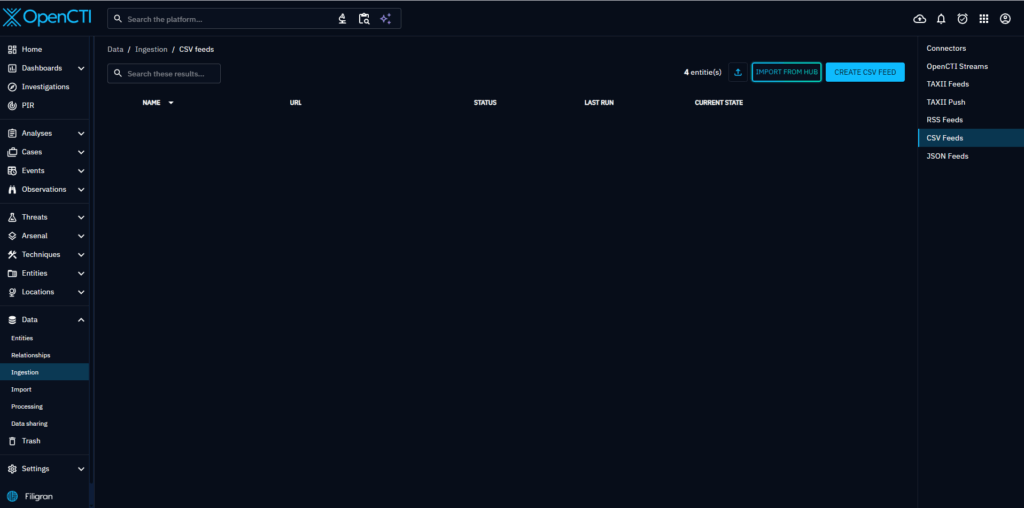
That is why we introduced the ability to import and export CSV Feeds directly from OpenCTI. On the CSV Feeds management screen, instead of clicking the “create” button, you can now choose the “Import” button. Just upload a JSON file, fill out a few fields and that’s it !
You can help newcomers by sharing your own CSV Feeds. Just open the menu on any of your existing CSV Feeds, click “Export”. It will download a JSON file that contain everything needed to replicate your setup.
Want to benefit from others’ work too? You can import CSV Feeds created by experienced users in just a few clicks.
Import/Export CSV Feeds in the OCTI CSV Feed Page
Navigate to Ingestion > CSV Feeds.
Before importing a CSV Feed, you’ll need an imported JSON file. You can obtain this from the XTM Hub or by exporting the configuration from an existing CSV Feed.
Once you have the JSON file, click the Import button to proceed.
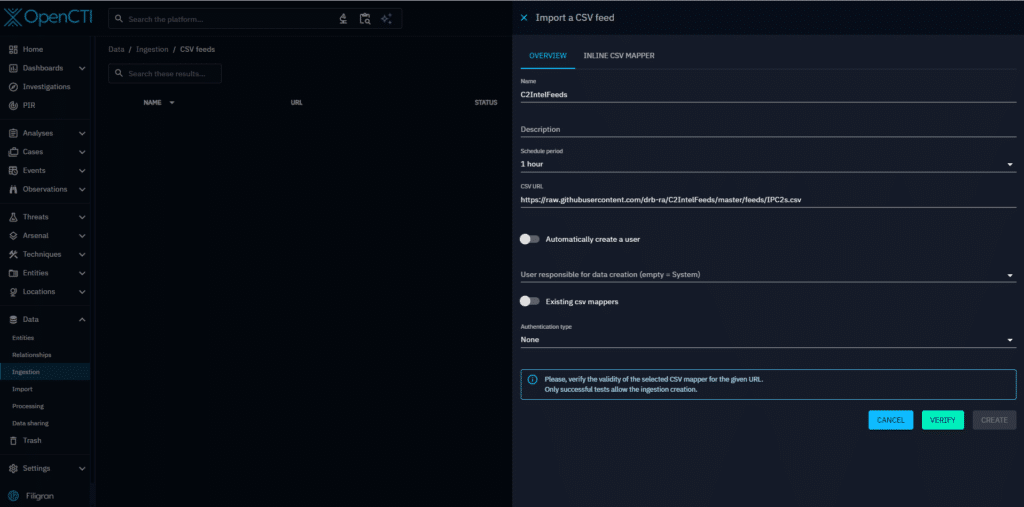
After importing, the creation drawer will open with a pre-filled form using the information from the JSON file.
Here you’ll have the option to automatically create a user associated to this CSV feed by switching on the toggle ‘Automatically create a user’. This reduces the friction when creating (or importing) a CSV feed into the platform: you do not need to create a user upfront before creating a CSV feed. The form will allow you to create a user on the fly, without the need of having the capability “manage credentials”. Every users created using this method, will have be part of a default group that you will need to set upfront, and a default confidence of 50 (that you can modify when creating your user on the fly).
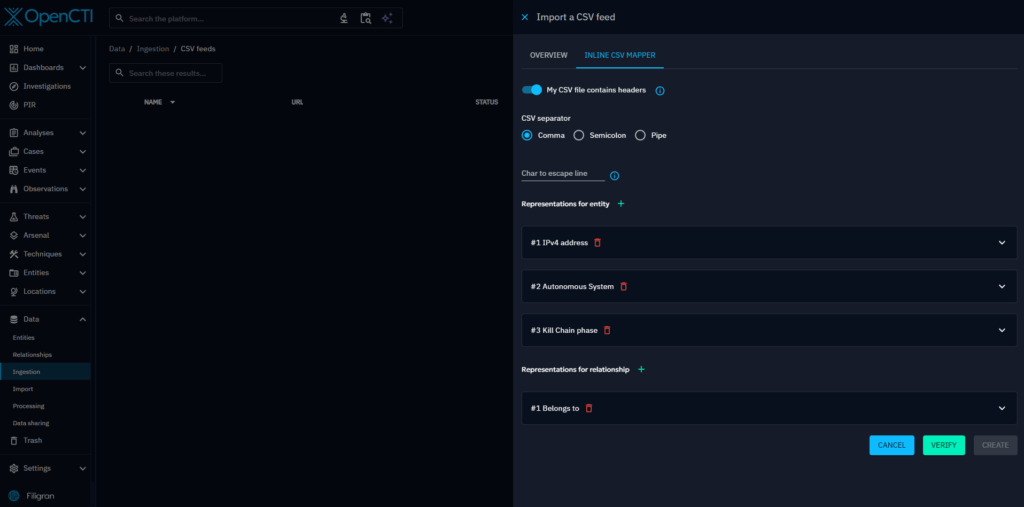
We’ve also added an “Inline CSV Mapper” tab, allowing you to customize your mapping directly when configuring your CSV Feed, instead of selecting an existing CSV Mapper.
By default, user credentials and authentication details are not included in the JSON file for security reasons. Be sure to add them manually if required.
Once everything is set, you can click “Verify” to check the setup, and then “Create” to finalize it.
You can now start, duplicate, and modify your CSV Feed as usual, just like any other configuration.
Our Contribution: Curated CTI Feeds for the Whole Community in the XTM Hub
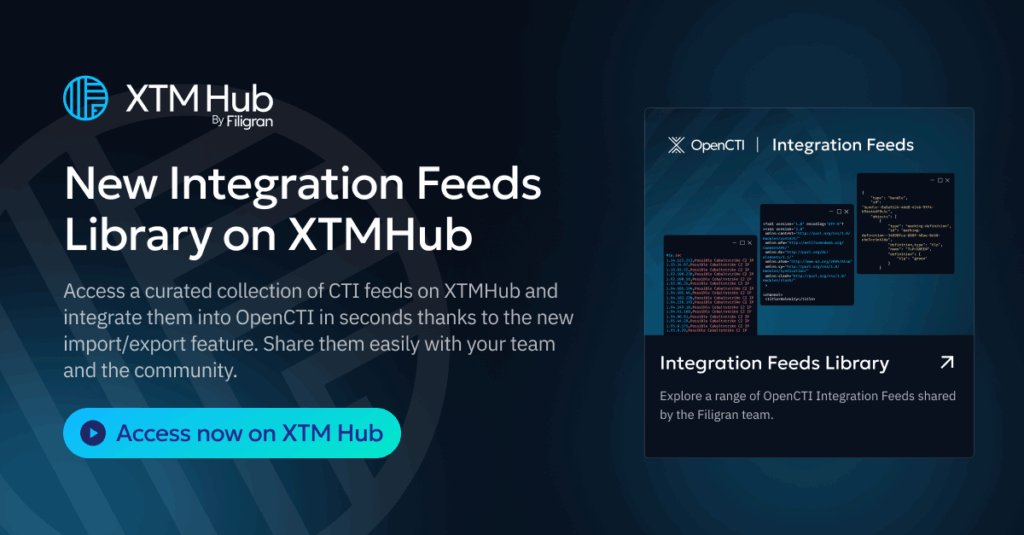
At Filigran, we believe in making the community thrive : we curated some excellent sources, that all of you will be able to use. All these sources are available in our XTM Hub, for you to choose without messing your platform with unused integrations. The CSV Feeds are available on the XTM Hub in our new Integration Feeds library! Discover, browse and download CSV Feeds that can help your whole CTI and then simply import it in OpenCTI.
How to access CTI Feeds on XTM Hub
Accessing resources on XTM Hub is designed to be seamless and secure, so you can focus on using them, not on figuring out how to get to them.
First, you’ll log in “with Filigran”, which means you can use the same credentials you already rely on across the XTM suite. This unified authentication system ensures a smooth and consistent experience across all Filigran products.
Once connected, you’ll automatically be grouped under your organization. This setup allows you to access the resources and services that have been activated by your administrator, ensuring that everyone within your team benefits from the same curated tools and content.
When you find a resource you want to use, simply visit its dedicated page. If you’re logged in, you’ll have the option to download it immediately (JSON format). From there, you can manually import it into your OpenCTI instance. In the next release, we’ll be working on a one-click deploy feature to make this step even faster, but for now, a quick import is all it takes to start using what you’ve downloaded.
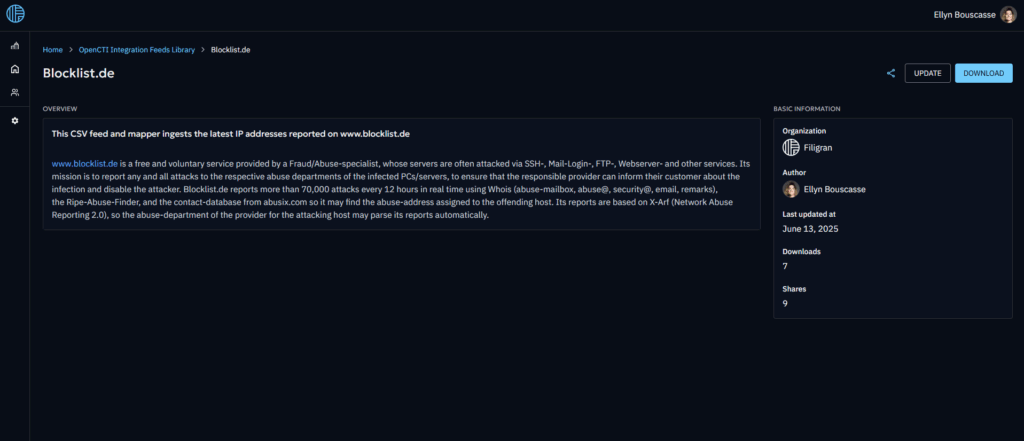
How to leverage these new CTI feeds
Take time to share your favorite resource to your coworkers and peers, by clicking on the “share” icon and then paste the generated link in your social media.
You can also access our Filigran Academy that includes structured learning paths and certification for OpenCTI, OpenBAS (coming soon), and broader threat intelligence concepts. It will help you deepen our platforms expertise, operationalize threat intelligence, and earn credentials that validate proficiency.
Also Available on XTM Hub: Ready-to-Use Custom Dashboards
That is not our first boost. We have also published ready-to-use Custom Dashboards collection, built by the Filigran team to help you get immediate value from your data in OpenCTI.
Custom Dashboards are ready-to-use visualizations created by the Filigran team to help you quickly grasp key insights from your data. Whether you’re tracking threat trends, monitoring critical indicators, or preparing strategic overviews, these dashboards are designed to be both visually effective and easy to integrate. They’re especially useful for different user profiles—from CTI analysts and SOC operators to decision-makers—offering each of them tailored views into what’s most relevant for their work.
What’s next?
XTM Hub is just getting started. Our ambition is to turn it into a dynamic and evolving platform that grows alongside the needs of the CTI community. In the coming weeks and months, we’ll be expanding the Integration Feeds library with fresh data feeds for our integration feeds library such as RSS feeds, JSON feeds and connectors and richer integrations that connect seamlessly with the rest of the XTM suite.
And of course, we do not forget OpenBAS. Soon, you’ll be able to easily import scenarios from the Hub to your OpenBAS instance.
We have plenty of ideas, discover our full roadmap HERE. Our goal is simple: make threat intelligence more accessible, more actionable, and more connected for everyone.
To discover our selection of CSV Feeds in the integrations feeds library, click here.
If you have any question, request, comment or feedback to share with us, don’t hesitate to join us on Slack!
Read more
Explore related topics and insights